
Create Statement 3 and Annexure B JSON files without Excel
Generate Statement 3 JSON and Annexure B JSON for a GST refund in your browser, or have an AI assistant prepare them. Includes an example to try first.
A GST refund application for exports made without payment of tax needs two JSON files. Statement 3 lists your export invoices and bank realisation details. Annexure B lists the purchase documents behind your input tax credit (ITC). The GST portal’s offline utilities that create these files are Excel workbooks whose macros use Windows-only components, so they need Excel for Windows.
This guide shows how to create both files with the Fast GST Refund JSON generator instead. You can enter the records yourself in a browser on any computer, or have an AI assistant prepare them and send you a link. The generator applies the checks of the offline utilities and writes the same file format.
Checking your records is free and needs no account. Downloading costs ₹499 plus GST once for a GSTIN and refund period. That one payment covers both files and every corrected file.
Before you begin
This guide is for RFD-01 applications of the type Exports of Goods/Services - without Payment of Tax (accumulated ITC) (Excluding Electricity), which need both files.
Statement 3 is used only for this refund type. Annexure B is also required for other refunds of accumulated ITC, such as supplies to an SEZ unit or developer without payment of tax and an inverted tax structure. The GST portal uses the same Annexure B utility for them, so you can create that file here in the same way. Their other statements are not covered.
Collect the following records. To try the generator before you collect anything, use the example.
| For | You need | Where to find it |
|---|---|---|
| Both files | Your GSTIN, and the From and To return periods of the claim | Registration certificate and your RFD-01 application |
| Statement 3 | Export invoices, debit notes and credit notes: number, date and value in rupees | Accounting system, matching your GSTR-1 |
| Statement 3, services | Bank realisation certificates (BRC) or foreign inward remittance certificates (FIRC or e-FIRC): number, date and value in rupees | Your bank |
| Statement 3, goods | Port code, shipping bill number and date, FOB value, and Export General Manifest (EGM) reference and date | Shipping bill and Export General Manifest |
| Annexure B | Purchase documents: supplier GSTIN and name, document number, date, value, HSN/SAC and tax amounts | Purchase register and supplier invoices |
| Annexure B | The GSTR-2B period that contains each document. GSTR-2B is the ITC statement that the GST portal generates for you from your suppliers’ returns. | Your GSTR-2B statements |
| Annexure B | Whether each credit is blocked under section 17(5) or eligible, and eight ITC reversal totals | Your ITC working and filed GSTR-3B |
Create the files in your browser
Enter your claim
- Open the JSON generator.
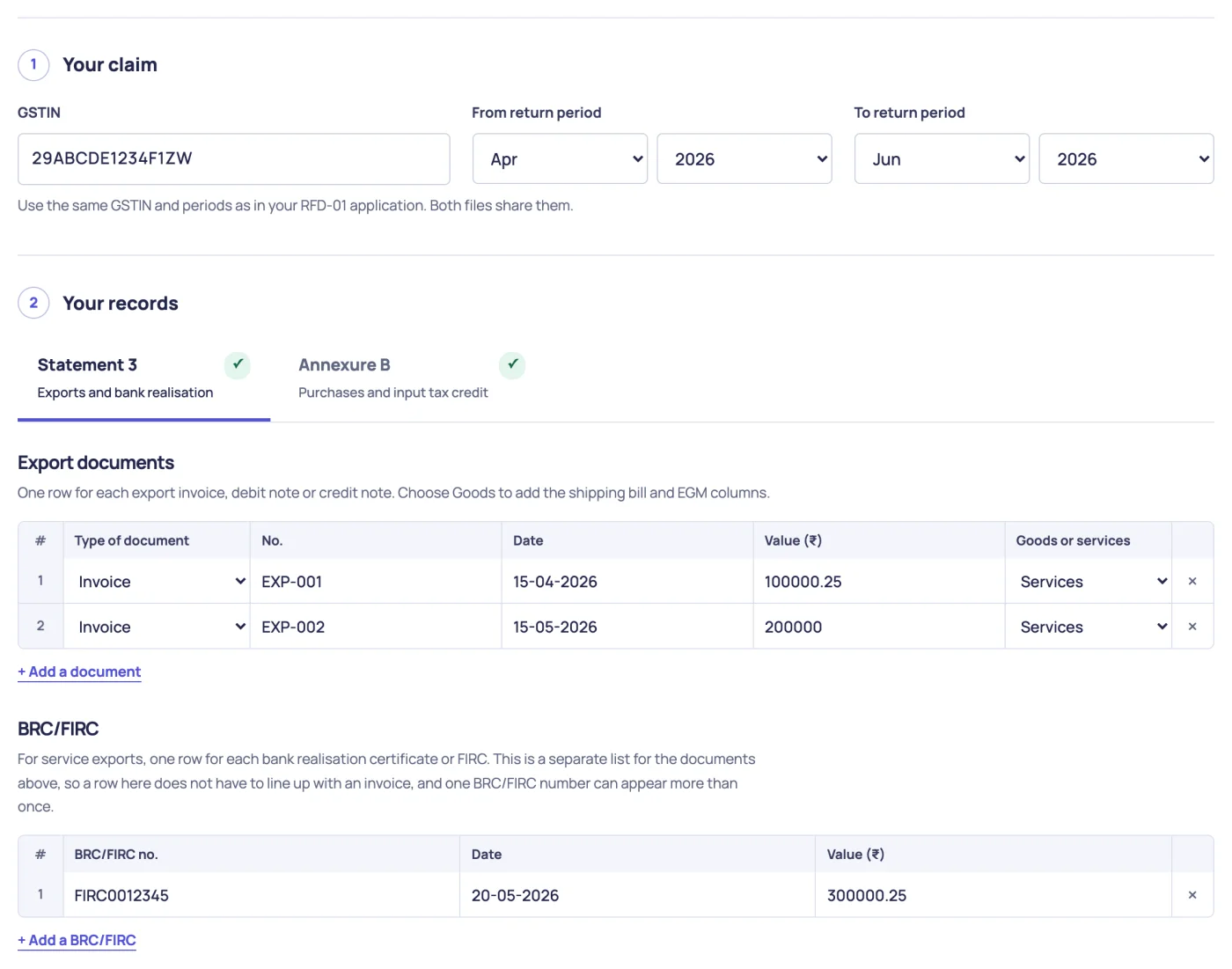
- Under Your claim, enter your GSTIN.
- Select the month and year for From return period and for To return period.
Use the same GSTIN and periods as in your RFD-01 application. Both files share them. One payment covers one GSTIN and one From and To period, so check them before you pay.
Enter the Statement 3 records
- Under Your records, click the Statement 3 tab.
- In the Export documents table, enter one row for each invoice, debit note or credit note:
- Type of document: select Invoice, Debit Note or Credit Note.
- No.: the document number, up to 16 letters, digits, slashes or hyphens.
- Date: for example,
15-04-2026. - Value (₹): for example,
100000.25. - Goods or services: select Services or Goods.
- For a goods export, fill in the shipping bill and EGM columns, which appear when you select Goods.
- To add a row, click Add a document.
- In the BRC/FIRC table, enter one row for each bank realisation certificate or FIRC: number, date and value.
The BRC/FIRC table is a separate list. A row in it does not have to line up with an invoice, and one BRC/FIRC number can appear in more than one row.
To enter many rows at once, copy the cells from a spreadsheet with the columns in the same order as the table, starting with Type of document. Click the first cell of the row where the data should start, and paste. You can also copy rows from the offline utility’s sheet, with or without its serial-number column and heading row. The generator leaves those out and puts the BRC/FIRC columns in the BRC/FIRC table.
If the pasted rows are not what you expected, click Undo in the message that appears.
Enter the Annexure B records
- Click the Annexure B tab.
- Under ITC reversals from GSTR-3B, do one of the following:
- If you have no reversals to report, select the No ITC reversals to report for this period checkbox.
- Otherwise, enter all eight amounts. Enter
0where there is no reversal.
- In the Purchase documents table, enter one row for each input category and HSN/SAC on a purchase document. Select Type of inward supply first. The generator then switches off the cells that do not apply. For example, an import of services has no supplier GSTIN and no GSTR-2B period.
- In each row, select a value for ITC blocked u/s 17(5). If you select Yes, the generator sets Eligible for ITC to No. Otherwise, select a value for Eligible for ITC:
- If you select Yes or No, you can leave Eligible ITC (₹) and Ineligible ITC (₹) empty. The generator fills them from the tax total.
- If you select Partially, enter both amounts. They must add up to the tax total.
- In File name, keep the suggested name or enter your own.
The table is wider than the window. Scroll it sideways to reach the tax and eligibility columns.
The columns are in the same order as in the offline utility. If you already have rows there, copy them and paste them into the first cell.
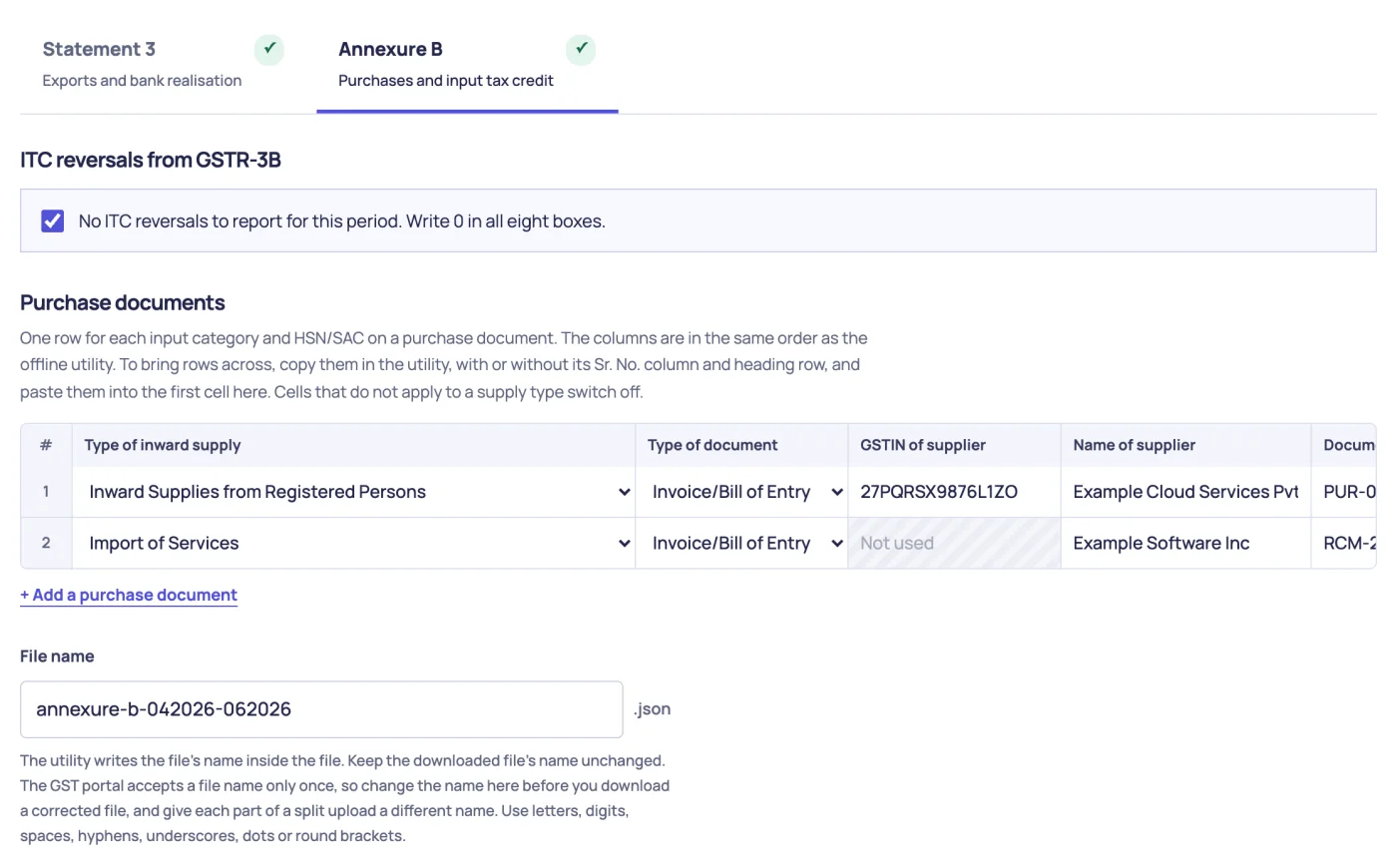
Don’t rename the Annexure B file after you download it. The file name is also written inside the file. The GST portal accepts each file name only once, so use a new name in File name whenever you create a corrected file. If you split one application across several files, give each file a different name and enter the reversals only in the last file.
Fix the problems that the checks find
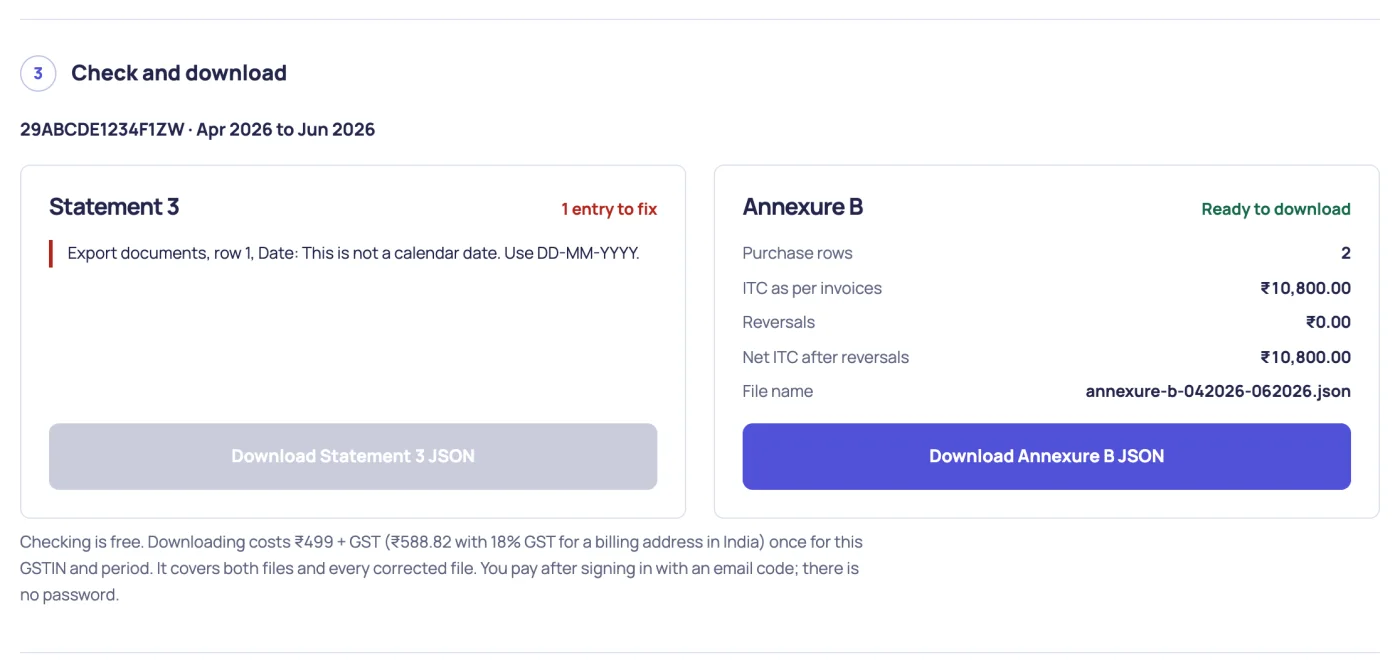
The generator checks your entries as you type and lists every problem at once. Under Check and download, each statement shows its status:
| Status | What it means |
|---|---|
| Not started | You have not entered a row for this statement. |
| 1 entry to fix, or a larger count | The offline utility would refuse to create the file. Fix each listed entry. |
| Ready to download | The file can be created. |
| Ready, with 1 note to review | The file can be created. Read each note in amber. A note never blocks your download. |
To go to an entry, click it in the list. The cell is highlighted and its message appears below the table.
For example, if you enter the date 31-04-2026, the list shows Export documents, row 1, Date: This is not a calendar date. Use DD-MM-YYYY.
The checks cannot tell whether an invoice appears in your returns or whether a credit is eligible. The GST portal compares the uploaded file with your filed returns.
Download the files
-
Under Check and download, click Download Statement 3 JSON.
-
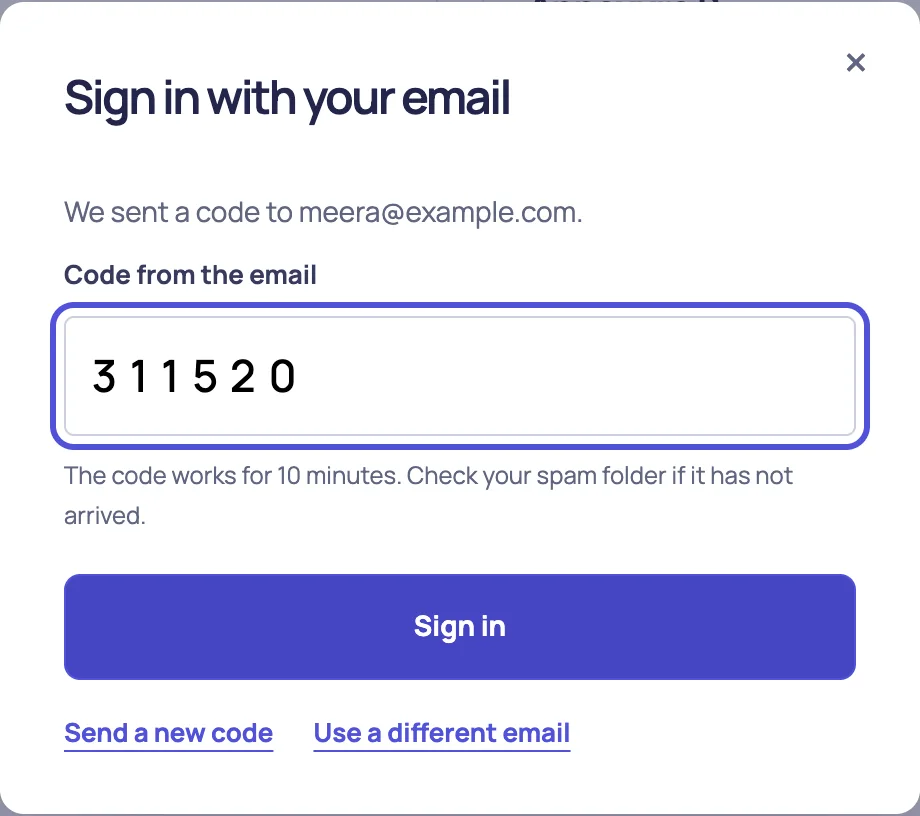
If you are not signed in, enter your email address and click Email me a code. Then enter the 6-digit code from the email and click Sign in. There is no password.
-
If you have not paid for this claim, check the GSTIN and period that the dialog shows. The dialog also shows the price with GST. Click Pay ₹499 + GST and download, and then complete the payment on the Dodo Payments page.
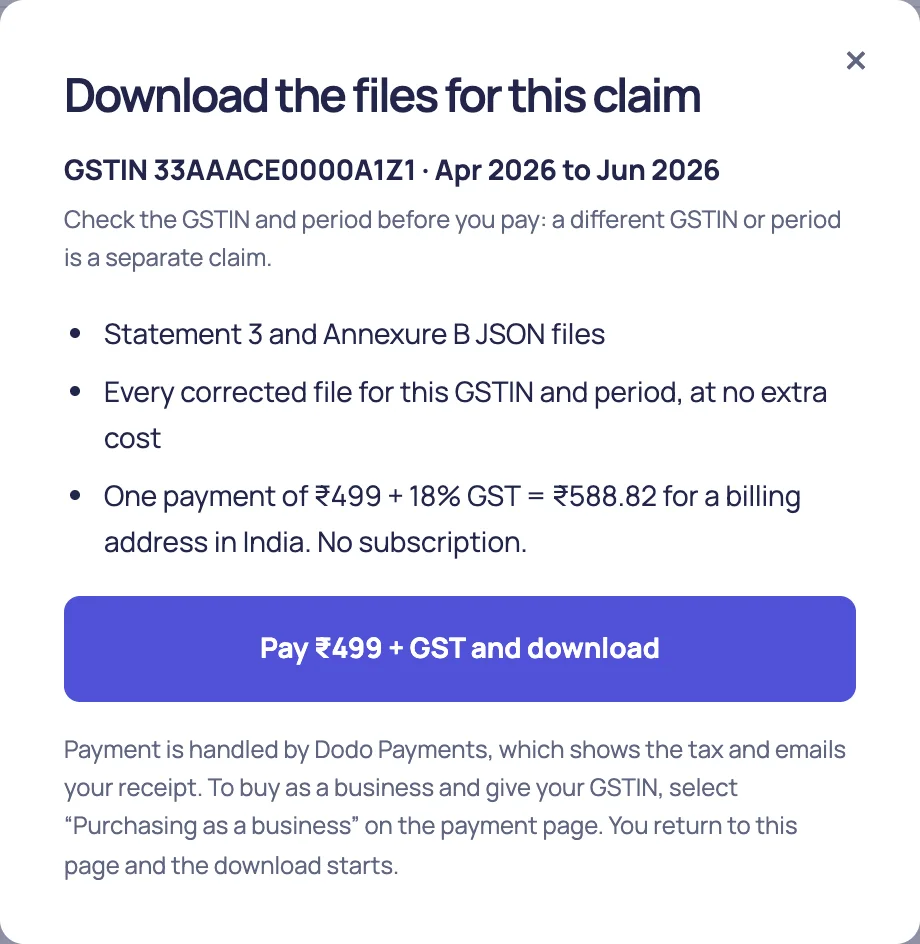
To buy as a business, select Purchasing as a business on the payment page, and then enter your business name and GSTIN.
After the payment, you return to the generator and the download starts.
-
Click Download Annexure B JSON. You do not pay again.
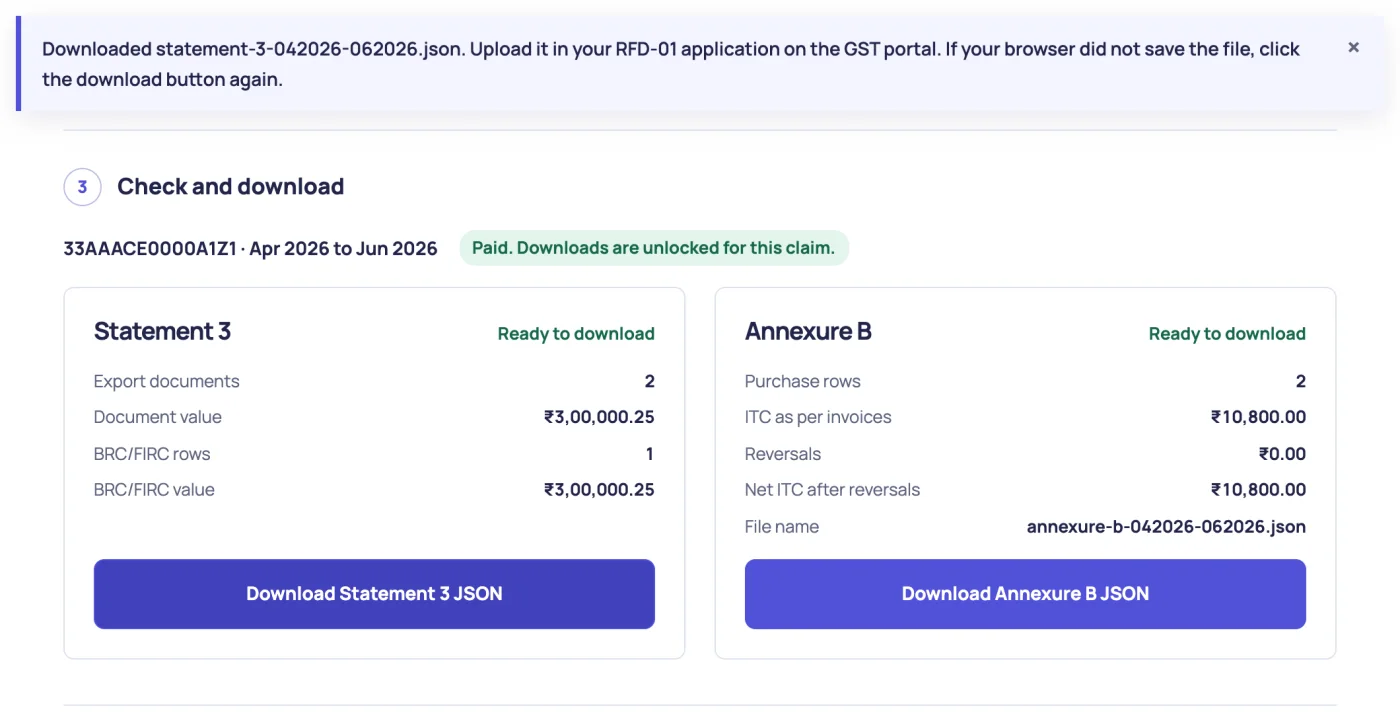
Your browser saves the files to its downloads folder. The Statement 3 file is named after the period, for example statement-3-042026-062026.json. The Annexure B file has the name that you entered.
To correct a file later, change the entries and download it again. Corrections for the same GSTIN and period are included. A different GSTIN or period is a different claim and needs its own payment. To come back on another device, sign in with the same email address.
Get your invoice
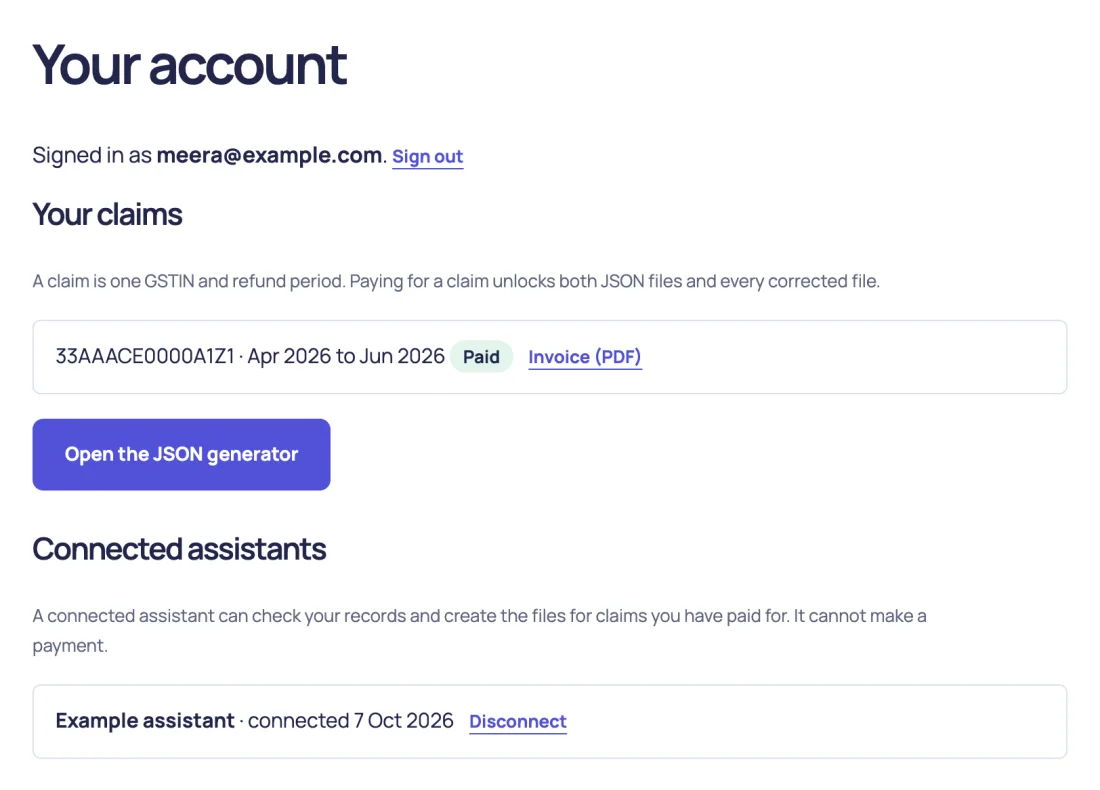
Dodo Payments emails you a payment confirmation with a link to your invoice. To download the invoice later:
- Open your account.
- Next to the claim, click Invoice (PDF).
Create the files with an AI assistant
An assistant that is connected to Fast GST Refund can read your invoices, FIRCs and purchase register, prepare the entries and check them. It then gives you a link that opens the entries in the generator. You review them and download the files yourself. The assistant does not see a password or handle your payment.
Connect the assistant
Add this server to an assistant that supports remote Model Context Protocol (MCP) connections. No account or key is needed.
https://fastgstrefund.com/mcpFor the settings, see Connect your AI assistant to Fast GST Refund.
Ask which records are needed
Send this prompt:
Call get_statement3_requirements and get_annexure_b_requirements. For each file, tell me which fields are needed and where I find each one. Ask me for anything that is missing. Do not guess ITC eligibility, reversal amounts or a GSTR-2B period.
The assistant lists each field, its format and its source.
Check the records
Give the assistant your records or the files that contain them, and then send this prompt:
Prepare the fields for both files from these records. Call validate_statement3 and validate_annexure_b. Show me every error and warning, and the totals. Do not create the files yet.
The check is free and needs no sign-in. Each response contains valid, a list of errors and a list of warnings. When there are no errors, it also contains a summary with totals. Ask the assistant to correct each error from your source records, and check again until valid is true.
Open the link and download
-
Send this prompt:
Call generate_statement3 and generate_annexure_b with the checked data. Give me one link for both files.
-
Open the link that the assistant gives you. The generator opens with your entries loaded.
-
Review the entries, and then follow Download the files.
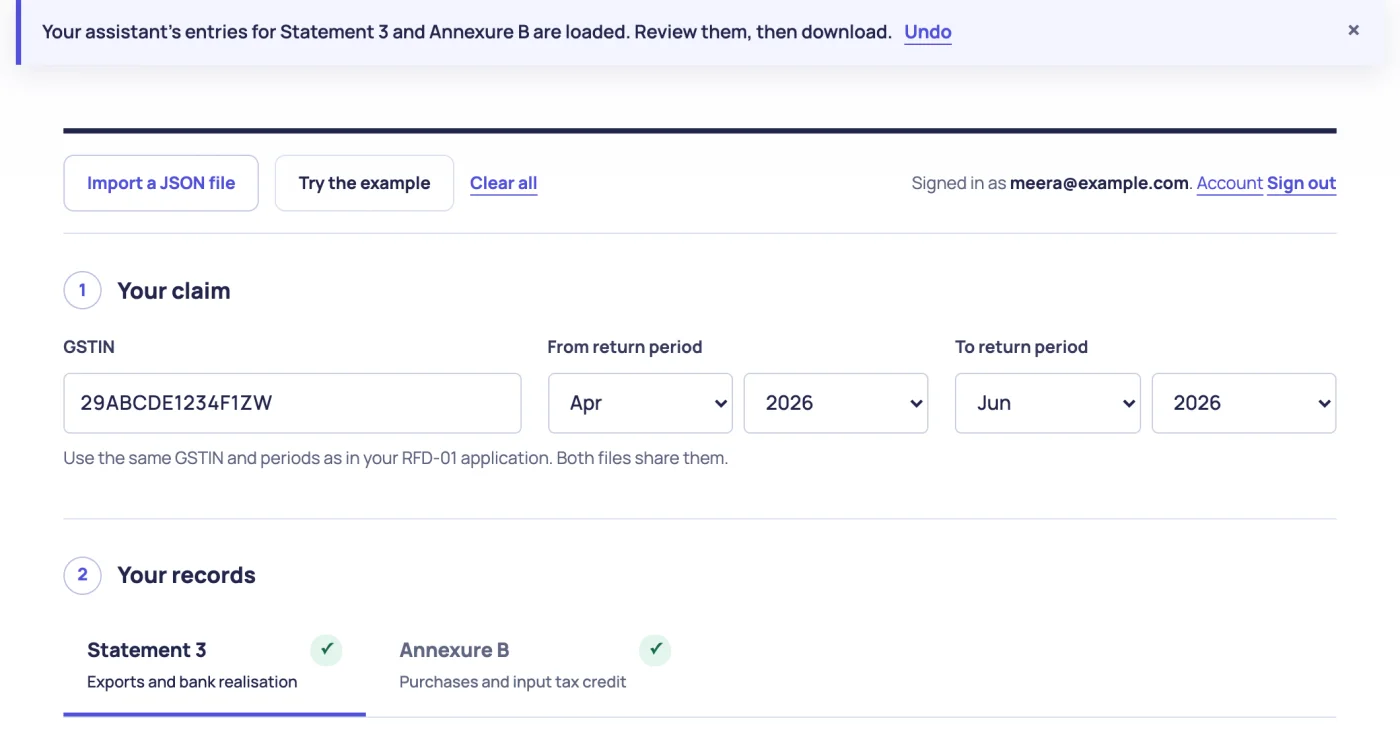
The link works for 24 hours. Anyone who has the link can open the entries, so share it only with people who should see them.
Connect your account to the assistant (optional)
Some assistants can sign in to the services that they connect to. If your assistant asks to connect to your Fast GST Refund account, a page opens in your browser:
- Sign in with your email address and the code that you receive.
- Read what the assistant will and will not be able to do, and then click Allow.
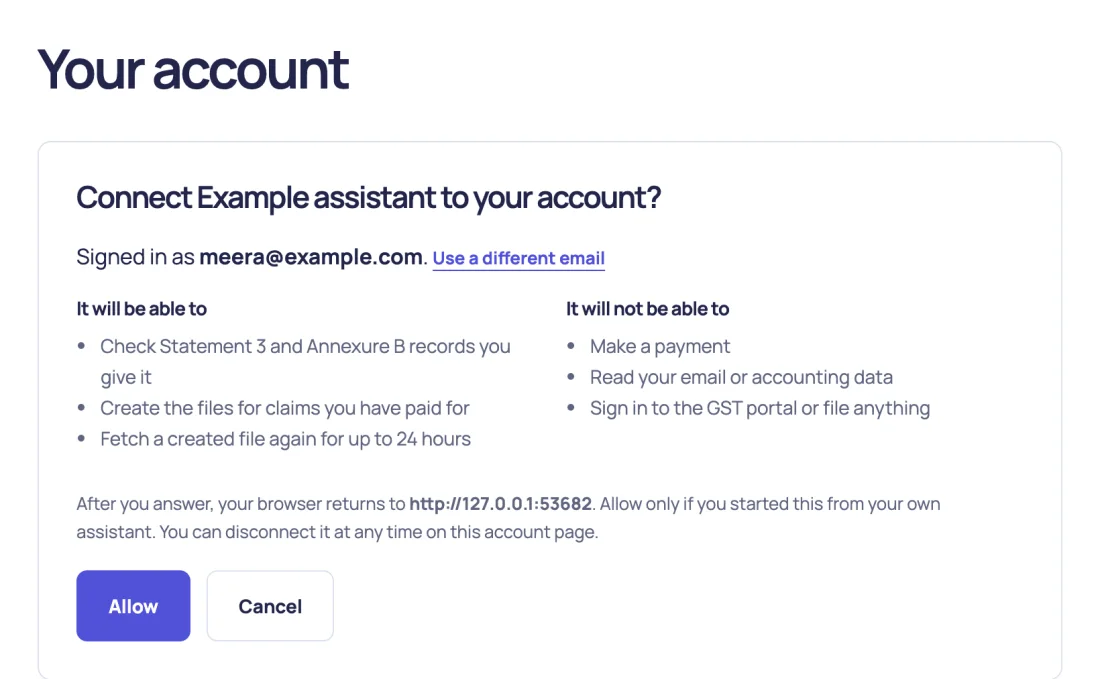
For a claim that you have paid for, a connected assistant receives the file itself and no link is needed. It cannot make a payment. To end the connection, open your account and click Disconnect next to the assistant.
Try the example first
To see the generator working before you enter your own records:
- Open the JSON generator.
- Click Try the example.
The example loads a fictional claim for April to June 2026. Both statements show Ready to download, with these totals:
| Statement | Totals |
|---|---|
| Statement 3 | 2 export documents with a value of ₹3,00,000.25, and 1 BRC/FIRC row with a value of ₹3,00,000.25 |
| Annexure B | 2 purchase rows, ITC as per invoices ₹10,800.00, reversals ₹0.00, net ITC after reversals ₹10,800.00, file annexure-b-042026-062026.json |
To see a check fail, change the first date to 31-04-2026. To remove the example, click Clear all.
The example is for practice. The generator does not let you pay for the example GSTIN, and you must not upload example files to the GST portal.
To try the example through an assistant, give it these two files and ask it to call validate_statement3 and validate_annexure_b:
Both responses contain valid: true and an empty warnings list.
Start from a file that you already have
If you have a JSON file that the offline utility created, you can check it, correct it and download it again:
- In the generator, click Import a JSON file.
- Select the Statement 3 or Annexure B file.
- If you have already entered rows for that statement, confirm that you want to replace them.
The rows appear in the matching tab, and the GSTIN and periods are taken from the file. To go back, click Undo in the message that appears. The generator also imports a file of fields that your accountant or your assistant saved.
Upload the files to the GST portal
Upload each file in your RFD-01 application on the GST portal. The portal’s labels are from the official refund instructions:
- For Statement 3, click Click to upload the details of Exports of goods and/ or services, and then click CLICK HERE TO UPLOAD.
- For Annexure B, click Click to upload the Statement of invoices (Unutilized ITC), and then click CLICK HERE TO UPLOAD.
- After each upload, click VALIDATE STATEMENT.
If the portal reports invalid documents, click Download Invalid Document to see them. Correct those entries in the generator, and then create a new file:
- Statement 3: The official instructions say to upload only the documents that had errors. In the generator, keep only those documents, download the file and upload it. Your earlier download still holds the full list, and you can import it again later.
- Annexure B: The portal’s upload screen says to upload the entire statement again in a new file. Change File name to a name that you have not used before, download the file and upload it.
If the note on the portal’s upload screen differs, follow the portal. See Fix Statement 3 and Annexure B upload errors.
Fix a problem
| Problem | What to do |
|---|---|
| The download button is unavailable | Fix the entries listed for that statement. The button becomes available when the status is Ready to download. |
| The code email has not arrived | Check your spam folder. After 30 seconds, click Send a new code. A code works for 10 minutes. |
| You paid, but the download did not start | Wait a minute, and then click the download button again. If the dialog says that your payment is not confirmed yet, click Check again. You are not charged twice. If it still asks for payment after a few minutes, write to support. |
| The page says that the payment was not completed | You have not been charged. Click the download button again, and then click the pay button. |
| You left the bank’s page without finishing the payment | Click the download button again, and then click the pay button. A new payment page opens. |
| The dialog says that your last payment is not confirmed yet | If you completed the payment, wait a minute and click Check again. If you did not finish it, click Pay again. If money has left your account, do not pay again: the payment is confirmed on the page or returned by your bank. |
| You paid for the wrong GSTIN or period | Write to support from your account’s email address with the GSTIN and period that you paid for and the ones that you need. |
| You pasted or imported the wrong rows | Click Undo in the message, or press Ctrl+Z (Command+Z on a Mac), before you change anything else. |
| The page asks you to pay again for the same records | Check the GSTIN and both periods. A payment covers one GSTIN and one From and To period. Check also that you signed in with the email address that you paid with. |
| The assistant’s link says that it has expired | Ask the assistant to create the link again. A link works for 24 hours. |
| Your entries are missing when you return | Entries are kept in the browser that you used. Use the same browser, or import the file that you downloaded. |
| The GST portal reports an error after upload | Correct the entries that the portal lists, and then follow Upload the files to the GST portal. The steps differ for the two statements. Corrections are included in your payment. |
| The portal says that the file name was already used | In File name, enter a name that you have not used before, and then download the Annexure B file again. For Statement 3, rename the downloaded file. |
Your browser saved the Annexure B file as name (1).json |
The name no longer matches the name inside the file. In File name, enter a new name, and then download the file again. |